



Based on 0 reviews
Be the first to review “SAMSUNG Xpress M2020 Printer”
Related products
-
Brother Printer, Printer
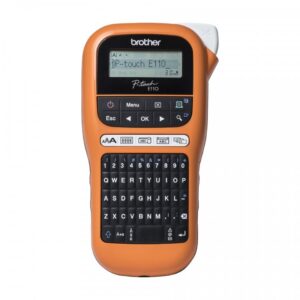
Brother PT-E110VP Handheld Electrician Label Printer
Create labels in various colour combinations and widths that have been tested in extreme conditions to make sure they stick around for a long time. With dedicated functions and smart keys to make common labelling tasks quick and easy, and everything supplied in a hard carry case. The PT-E110VP is an invaluable tool for electricians and other professional trades.
Dedicated number keypad
Many labels consist of identifiers with a combination of letters and numbers. The dedicated numeric keypad allows quick entry of numbers with one finger.Brother PT-E110VP. Keyboard layout: QWERTY. Tape type: TZe. Print technology: Direct thermal, Maximum resolution: 180 x 180 DPI, Print speed: 20 mm/sec. Supported paper width: 3.5, 6, 9, 12 mm. Battery type: AAA, Battery technology: Alkaline. Product colour: Black, Orange
SKU: n/a -
Printer, Xlab Printer
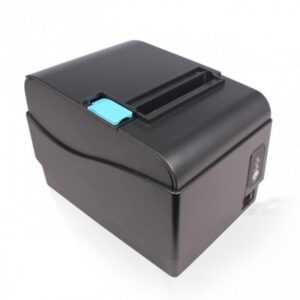
xLab XP-800UL 80MM DIRECT THERMAL PRINTER
USB+LAN+Serial
● Speed printing
● Three-in-one (serial port, U port., network port), easy to operate
● Easy maintenance Just remove the two screws can be disassembled
● Paper rolls up to SO rm in diameter
● Supports 2D code printing .
SKU: n/a -
Uncategorized, Printer
Server Networking
Step 1
Locate a gigabit networking switch (a router or hub will also work) in a central location. Remember that each computer will need a network line ran to this location, so make sure that it is practically positioned. Plug an Ethernet network cable into an empty port on the back of the switch for each computer on the network, including the server. Run the cables to each system, making sure that they are run in a location that is out of the way of equipment and pedestrians. Plug the Internet modem’s Ethernet cable into the switch if you want to share that as well.
Step 2
Plug an Ethernet cable into the networking port located on the back of each computer, including the server. To take advantage of the gigabit speeds, each computer will need to have a gigabit-capable networking card. You can check to what kind of card a Windows-based computer has by right-clicking on “My Computer,” clicking “Properties,” then the “Hardware” tab, followed by “Device Manager.” Under “Network Adapters” the card type will be listed. If any of the computers don’t have one of these cards, one can be purchased and easily installed by the average computer user.
Step 3
Run the network configuration tool on each computer. On a Windows-based workstation, this is the Network Setup Wizard, located in the Control Panel. The configuration tool will automatically detect the network and what type of computers are on it. You will be asked questions, such as what name you want to give the network, what name each computer should have, and if you want to share files and printers in addition to an Internet connection. Once the wizard has completed, restart each computer, and the server network is complete.
SKU: n/a

There are no reviews yet.